Your account, your device
Approve the installation in your browser. Your agent keeps its connection privately on that machine.
GETTING STARTED
Connect your coding agent to Axtro. Keep useful session summaries and bring the right skills into your next task.
Approve the installation in your browser. Your agent keeps its connection privately on that machine.
Save decisions, completed work, checks and lessons. Find them in your personal session list.
Search from your agent, then load instructions for code review, debugging, testing and more.
SET UP YOUR CODING AGENT
Open a project in Claude Code or Codex and paste the prompt below. Your agent installs the session-capture skill and the skill-center integration, then registers the Axtro MCP tools. You approve the account connection yourself.
Set up Axtro for this coding client using both instructions:
https://v2.axtro.hjchoi.com/skills/axtro-session-capture/SKILL.md
https://v2.axtro.hjchoi.com/skills/axtro-skill-center/SKILL.md

Install both as personal skills, verify the helper checksums, and preserve existing settings. If this client is not covered by the instructions, explain the setup gap instead of claiming success.

For the current project only, I authorize sending sanitized session summaries to Axtro when I explicitly request it. Use on-request mode; ask me for the project directory if it is unclear. Connect this installation to my Axtro account and show me the browser approval URL and code. I will sign in and approve it myself. Do not upload a session during setup.

After approval, verify the account connection. Reuse that connection for the skill center and register the axtro-skills MCP server. Confirm what was installed and tell me whether I need to restart the client.
One prompt starts the setup. Browser sign-in, device approval, and possibly restarting your client are still required. The original session-capture-only install prompt does not install MCP.
| Client | Current verification |
|---|---|
| Claude Code | Installation, account pairing and real MCP search/load calls have been verified. |
| Codex | Skill paths and MCP registration syntax are checked. A complete live Codex tool-call run has not yet been verified. |
| Cursor / other agents | Not yet verified. The current installer documents Claude Code and Codex; your client may need additional skill and MCP configuration. |
Use an agent that can read the linked instructions, write local configuration and run Python. A chat-only client cannot perform this setup for your computer.
Use this alternative to connect without session access.
Read https://v2.axtro.hjchoi.com/skills/axtro-skill-center/SKILL.md and install the Axtro skill-center integration for my current coding client. Preserve existing settings. Connect my Axtro account for read-only skill access and show me the browser approval link if needed. Do not enable session capture. Register the MCP server and tell me when to restart the client.
LINK THE INSTALLATION TO YOUR ACCOUNT
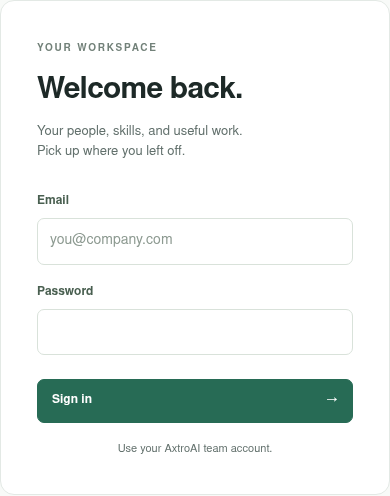
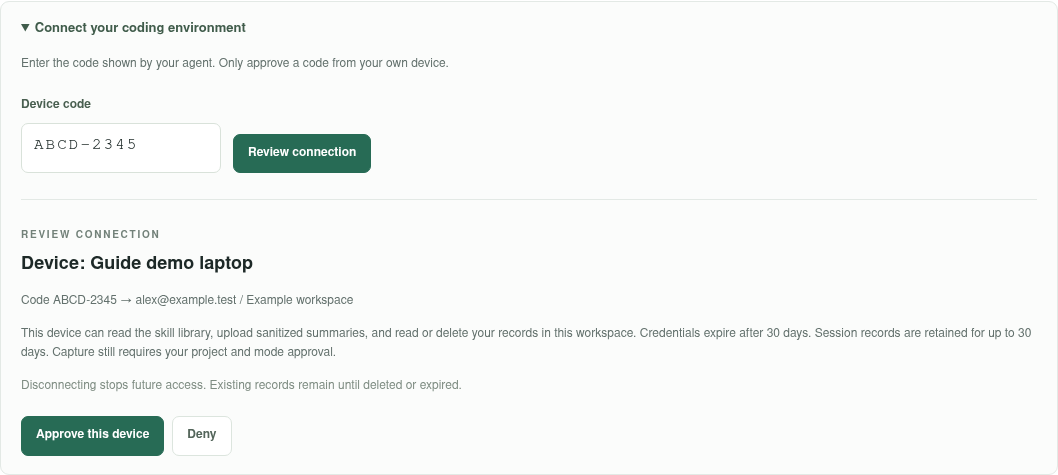
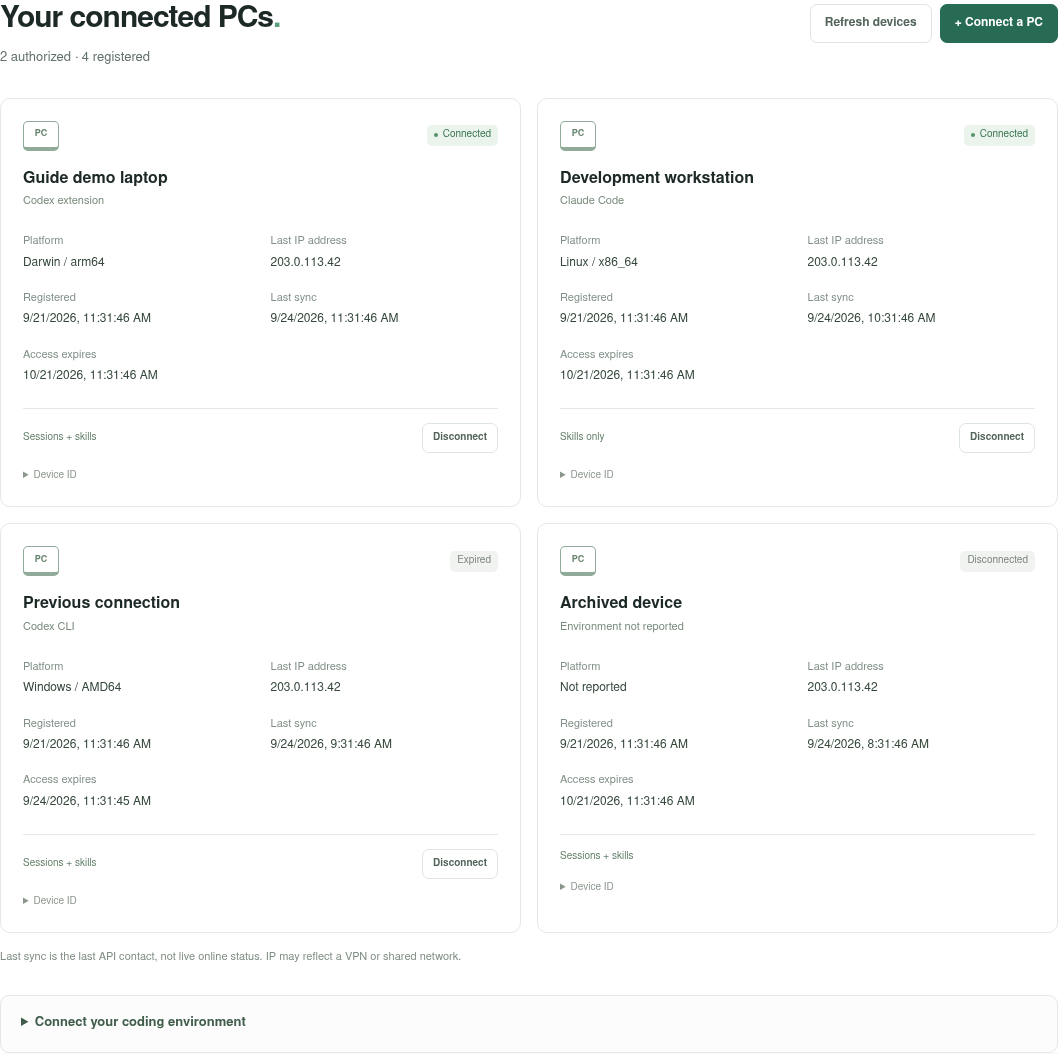
Actual Axtro UI captured with a synthetic account in an isolated demo environment on September 24, 2026. Example codes and devices do not grant access. Click an image to enlarge it.
This links a particular agent installation to your account. It is not a scan of your PC, and it does not link every agent or container on the machine. A Docker installation has its own local configuration.
SAVE WHAT YOU LEARNED
Once connected, ask your agent to use the capture skill. It summarizes the conversation it can see, removes sensitive details, and sends a structured record to your account.
Use axtro-session-capture to summarize and send this session to my connected Axtro account. Include the goal, decisions, work completed, verification, open questions and reusable lessons. Remove secrets and unnecessary personal or customer details. Send only the sanitized summary, and confirm delivery using the server receipt.
Open Your sessions and select Refresh sessions. Click a title to read its details. A local draft or a connected device is not proof that a summary was uploaded; look for the accepted receipt and the saved record.
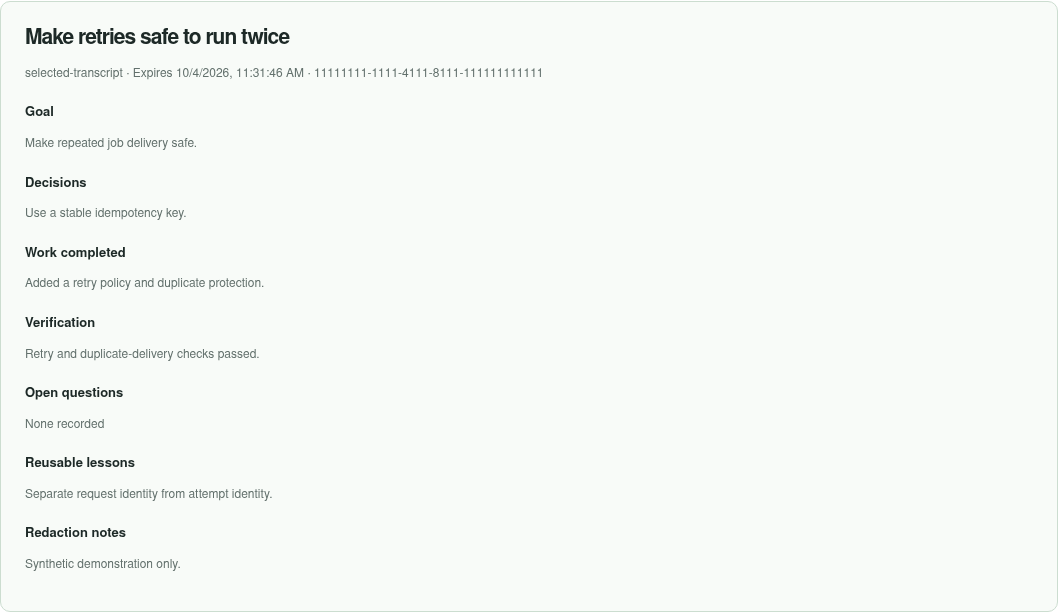
Yes, within a project where you explicitly enable default-in-scope capture. Then the agent can send a summary at meaningful task completion when it selects the skill. Use this optional prompt:
Enable Axtro default-in-scope capture and upload for this project only. At meaningful task completion, use axtro-session-capture to send a sanitized summary without asking me again each time. Confirm the exact project scope and saved mode. Do not read unrelated conversations or expand the scope.
Agent selection is not guaranteed. A skill is an instruction file, not a background service or a session-end hook. It does not run while the client is closed. If you need a specific session saved, ask explicitly.
Private by account. Sharing the team workspace does not let other members browse your raw conversations or your summaries.
30-day retention. Summaries expire after 30 days. Ask your agent to read or delete a record by its session ID; deletion does not remove the original local conversation.
You remain in control. Say “Pause Axtro capture” to disable uploads, or disconnect the device on the website. Disconnecting does not delete existing records.
LOAD THE RIGHT INSTRUCTIONS
The combined setup registers two MCP tools: search_skills and load_skill. After restarting your client, add this to your next task:
Before starting, use Axtro MCP to search for skills relevant to this task. Load the best match and apply its relevant instructions. Tell me which skill you loaded. Keep the existing task scope and permissions.
“Review this change for retry and idempotency problems. Use Axtro MCP to find and load the relevant skill before reviewing.”
search_skills finds matching descriptions.load_skill retrieves the selected instructions.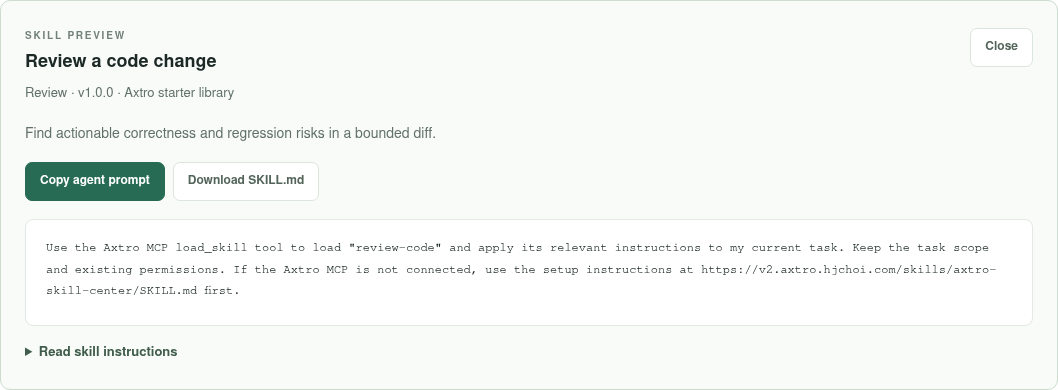
Browse all 15 skills in the skill center, filter by category, preview instructions, copy a task prompt or download a SKILL.md file.
Loading a skill does not upload your session or permanently install every library skill. Session capture is a separate action. Current search uses keywords; it does not search your private session history.
AXTROAI TEAM DEMO
The eight AxtroAI team members have pre-created accounts in one organization. All eight team members have administrator access in this organization. Use your existing roster email, including the two non-Gmail addresses.
These are working accounts in a demo workspace. A password you previously changed remains your password.
The email list and initial-password guidance are available to signed-in team members. First-time users: ask James for your initial login details.
Open team sign-in details ↗If asked to sign in, open this link again after signing in.
WHAT TO EXPECT
Signing in only opens the website. Start the connection from your agent, review and approve its code, then let the helper finish. Refresh the device list. Codes expire after ten minutes; ask the agent to restart pairing if needed.
Restart the coding client and ask it to check the axtro-skills registration and account readiness. A “Connected” device proves account pairing; a successful skill search proves the MCP connection is usable. Device credentials expire after 30 days and may need reconnecting.
No. Capture uses the current conversation unless you explicitly select a transcript. Installing the skills does not scan your history or send a summary. Your agent's own model usage for summarization may consume your normal subscription allowance or API tokens.
Not yet. Axtro currently saves sanitized session summaries, including reusable lessons. Those summaries are not automatically turned into published skills. The 15 starter skills are a separate shared library.
Not in this independent release. External connectors, project knowledge ingestion, reusable agent profiles, custom skill authoring and token/cost analytics are not yet included.
For capture, the agent prepares a minimized summary before sending it over HTTPS. Raw transcripts are not part of the upload schema. Redaction can miss details, so review sensitive work before sharing. Stored summaries are private through account permissions; the service operator can access storage. The receiver does not forward summaries to another model.
Connect your agent, save one useful session, and try one skill.
Copy the setup prompt ↑Open Axtro ↗